
One of the recent features we’ve added to TrueViewVisuals is to allow a template to be used to create a PDF file containing visualisations. In this post we’ll have a look at some of the features we’ve added and provide a bit of documentation on how to use them. First of all, here is an example of what we can produce:
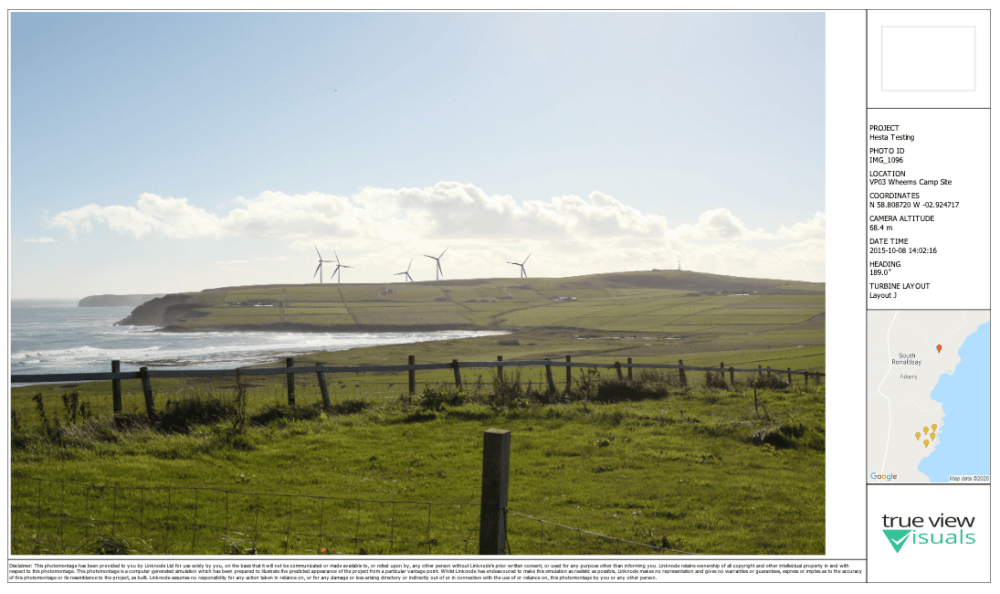
A PDF Template is a bit of HTML that is used to format the look of the PDF. It contains everything other than the main image and will be customised according to the settings chosen when publishing. You can use these templates to add extra information to the PDF or to change the look, so it matches your organisations brand.
An overview of the process is shown below.

Manage PDF Templates
A new section has been added to the settings page to allow you to view and manage PDF Templates. Choose the Manage Templates button to see all the templates that are set up for your organisation.

This page allows you to create a new template or edit the existing templates that have been set up. An organisation can have as many templates set up as required.
A template consists of the following information:
- Name – The name of this template so you can identify it later
- Available sizes – What page sizes this template is available for (e.g. A3 / A4)
- Include Footer – whether to include a footer or not. The footer is a line including the page number
- Header CSHTML – the header cshtml that is shown at the top of every page. (see header template section below)
- Body CSHTML – the body cshtml that the selected images will be inserted into. (see body template section below)
The header and body template sections are in a language called cshtml (c# html). It is used extensively by Microsoft to power their websites. You can read more about it on the Microsoft website. Essentially it replaces any statement that starts with an ‘@Model’ with a value from the image or metadata. The details of what can be replaced are noted below.
Header Template
The header template is shown at the top of every page of the PDF. Typically this is used to show the title, date and the logo. The header template allows you to access the following information:
| Template code | Meaning | Example |
| @Model.TimeZone | The timezone of the organisation | |
| @Model.LogoURL | The organisation URL | TVV_Logo.png |
Here is an example header html file.
Body Template
The body template allows you to create a PDF page for each image in the list of images chosen by the user when publishing. The model provides access to the following data.
| html statement | Meaning | Example |
| @Model.LogoURL | The Organisation URL | |
| @Model.AltLogoUrl | The Organisation Alternative URL | |
| @Model.TimeZone | The timezone of this organisation | |
| @Model.ProjectionCode | The projection code to generate the PDF in (either WGS or one of our supported projections) | OSGB |
| @Model.ImageWithMetaDataList | A list of images with associated metdata |
To access this list of images add a foreach instruction:
@foreach (var image in Model.ImageWithMetaDataList) {
Each item in the imagewithMetaData list provides access to the following data
| html code | Meaning | Example |
| @image.RenderImageName | The name of the render | |
| @image.RenderImageURL | The full URL of the image | |
| @image.RenderImageLocation.Latitude | The latitude of the image | 56.1234 |
| @image.RenderImageLocation.Longitude | The longitude of the image | -4.4321 |
| @image.VersionName | The name of the version shown in this image | |
| @image.DistanceToTurbine | The distance to the nearest turbine | 1.2km |
| @image.DisplayTimezone | The timezone to display the date times in | |
| @image.ProjectInfo.Name | The name of the project | Project Name |
Create a PDF with a Template
The process of creating a PDF file has changed to allow users to choose which template to use. The process starts by choosing Publish Renders to PDF
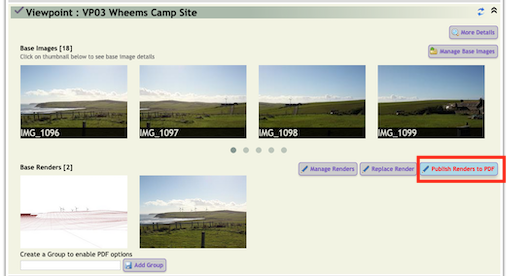
This takes you to a page where you:
- Select the images you want to include
- Reorder the images to get them in the correct order
- Choose the paper size (A3 and A4 are currently supported)
- Choose the template – either default or one of the ones set up as above

Once happy with the image order and settings on this page, choose Publish to PDF to create the PDF and store in Published PDF tab on the project page. The template name and the page size has been added to the table to make it easier to find the correct file.

PDF Templates – Now Available
The PDF Templates are now available for all organisations. We understand that they may be hard to set up and use, so if you need a hand to get one set up, please get in touch: hello@trueviewvisuals.com