
Accessing and navigating the portal
Contents
This section covers the processes of getting logged on and off the portal, changing your password and other general processes on the portal.
Getting started
The TVV Portal is accessed here from https://portal.TrueViewVisuals.com and can be used in any modern web browser.
Users will have been supplied with a username and password details to allow them to access the Portal. If you do not have these details, please contact support@trueviewvisuals.com to obtain them.
Logging into the portal
The TVV Portal requires the user to securely log on. No information is served without a valid username and password.
To login:
- Navigate to https://portal.TrueViewVisuals.com
- Enter your username and password as supplied.
- Click Log on

Notes:
- Do not tick the ‘Remember me?’ box if you are using a public or shared computer.
- If you cannot remember your login details, or have any problems accessing the Portal, please email support@trueviewvisuals.com
- Your account will be locked after ten failed login attempts. To unlock the account, please contact support@trueviewvisuals.com
Portal home page
Once successfully logged on, the Home Page is shown. The Home Page contains several tabs including:
- The Projects tab displays the projects list view where projects can be created and edited.
- The Organisational Cumulative Projects tab contains an organisation’s internal cumulative database. This is only visible to the organisation; no other organisation can access this database.
- The Settings tab is where Turbine Types are created and edited and where the format of the Latitude and Longitude can be updated.
- The Licenses tab displays the purchased license details.

The Projects list view is the main page of the TVV Portal. Once an operation is complete, it will take you back to the home page which lists all or published projects.
Each project row expands to show information about the different versions of that project.
Changing passwords
Passwords are changed by clicking on the username in the top right-hand corner of the portal website.
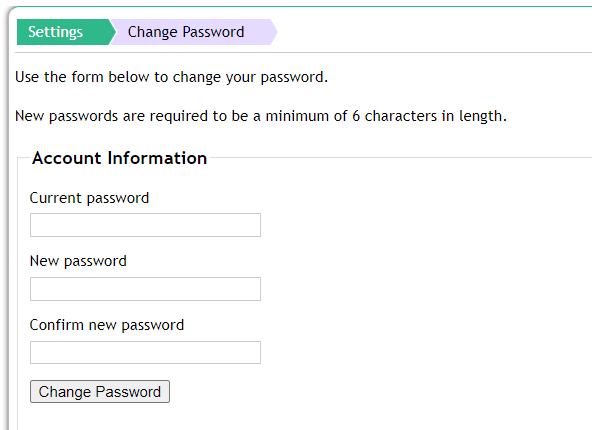
If you have forgotten your login details, please email support@trueviewvisuals.com for assistance.
Logging off
To log off the website, use the Log Off button in the top right corner. This will close your session with the portal and require the user to login again.
Validation
If any data entered does not match the format and requirements for completing that web page, a validation error will occur. A validation error is shown by highlighting the field red and putting a warning message next to that field.
For example, the email address must be entered to be able to log on. If no email address is entered, the field will become red with a warning next to it.

Getting help
Help documents (including this one) can be found in the help bar on the right-hand side of every page in the portal. This includes this document about the portal and the user’s guide for the iPad app.
| Icon | Description |
 | TVV Portal users guide |
 | TVV iPad app users guide |
International coordinate support
In the settings tab, default settings can be defined for the coordinate format to use. All coordinates are stored in WGS in the databases and within the app, however they can be converted to an appropriate format for display. The options are:
| Setting | Description |
| Decimal | Displayed WGS coordinates as a decimal (e.g. 55.954387) |
| DD.MM SS | Displays WGS coordinates as decimal minutes (e.g. 55.57 16) |
| DD° MM’ SS” | Display WGS coordinates in degrees minutes and seconds (e.g. 55° 57′ 16”) |
| Projected | Use the appropriate local project to provide a locally projected version |
When setting up a new project, a projection can be defined as the local coordinate system. We support the following projections:
- Great Britain (OSTN02)
- Ireland (ITM)
- Finland (UTM84_35N)
- Netherlands (RD New)
- Iceland 2004
- Canada (Alberta)
- Europe (ED50 / UTM zone 33N)
- Central Northern Europe (UTM zone 32N)
- France (Lambert93)
- Australia (GDA94 Zone55)