
Organisational cumulative projects
Contents
TVV provides the tools to allow users to manage their own database of cumulative projects that would affect their internal projects. This is separate to obtaining data from the National Cumulative Dataset.

Cumulative projects
A new organisational cumulative project (currently for wind projects only) can be set up by taking the following steps:
Click New organisational Cumulative Project

Fill in the fields as required (and described below) and click Add Cumulative Project
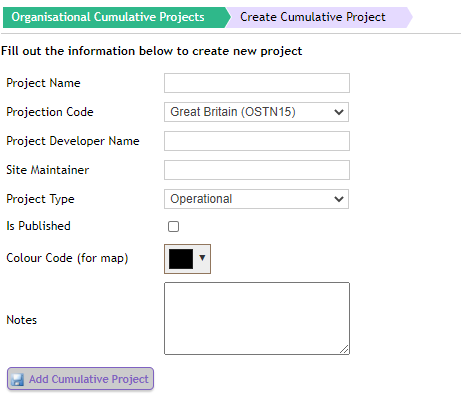
| Field | xxx | Description |
| Project Name | The name of the project that is being set up. | |
| Projection Code | The projection to be used to display the coordinates. | |
| Project Developer Name | Optionally set the name of the project developer. | |
| Site Maintainer | Optionally set the name of the company that maintains the site. | |
| Project Type | The type of cumulative project. Cumulative projects are described in later in Cumulative Project Types. | |
| Is Published | If this project exists on only the portal or on both the portal and the app. Only Published projects will be visible on the app. | |
| Colour Code | The colour that the cumulative project should be shown within the app. | |
| Notes | Any notes that should be added to this cumulative project. |
Once Add Cumulative Project is clicked, the Edit Cumulative Project page is displayed where you can add turbines or edit other project attributes. Cumulative Projects can be removed by clicking the Delete button on the main cumulative project list.
Cumulative project planning application
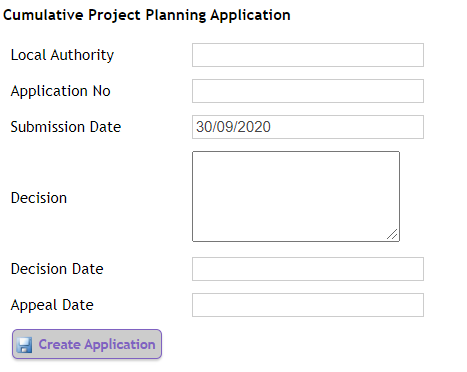
It is possible to add planning application information into the cumulative project so it is stored in the same place.
Click the Create new Application button
Complete the Cumulative Project Planning Application fields and click Create Application
Adding turbines
Similar to managing turbines associated with a project, cumulative turbines can be added individually or using a CSV import.

Adding a single turbine
Turbines are added to a Cumulative Project through the Edit Cumulative Project page.
To add a new turbine: Complete the fields required to add a new turbine.
| Field | xxx | Description |
| Reference | Complete the required number to identify the turbine | |
| Type | Choose the required turbine type from the drop-down list. Turbine Types are described in [Adding an Item Type]. | |
| Coordinate System | Choose between WGS and Projected to enter coordinates in the appropriate format. If projected is chosen, coordinates will be projected using the projects Projection setting. Coordinate systems are described in [Displaying Coordinates]. | |
| Latitude / Longitude | If WGS is selected, the location can be entered in WGS Latitude and Longitude. TVV will look up the altitude (from the chosen terrain service) for each medel location entered and store that too. | |
| Easting / Northing | If OSGB is selected, the location can be entered in projected Easting and Northing. TVV will look up the altitude (From the chosen terrain service) for each model location entered and store that too. |
Notes:
- Once added, Cumulative Turbines are shown on the map as a blue star.
- Turbines cannot be edited. If a Turbine is incorrect, please delete the Turbine and recreate a new one.
Adding multiple turbines
Multiple models can be added also. To import multiple models
- Click Import Turbines
- Click Choose File to select the chosen CSV file
Click Sample to download the sample CSV file template for viewpoints. The Sample CSV file changes depending on the coordinate system to be used.
Exporting turbines
To export items in CSV format:
- Click the Export turbines button
- The CSV file exported will have coordinates in the currently selected coordinate system (Please remember this will export all the items from the layout as a CSV and does not export only the ticked)
Viewing nearby cumulative projects
Cumulative projects that are identified as being near to a project can be found from the cumulative tab on the view project page.